Showing posts with label firefox. Show all posts

Friday, June 29, 2012

How To Schedule Email's In Gmail : With Send Later Option

Gmail The world's Most Popular email service provider . Gmail provides various features like changing the look of gmail , 2 step verification for security , Gmail also provide attractive themes , options to undo a sent email  in gmail .What if you have to send a birthday car to a friend on his birthday and you you are not able to send as you will not be available at that time for some reasons . Gmail doesn't provide the feature fo scheduling emails .There is a solution for this problem ans is a very easy one.

How To Schedule Email's In Gmail : With Send Later Option


How To Schedule Mails In Gmail :


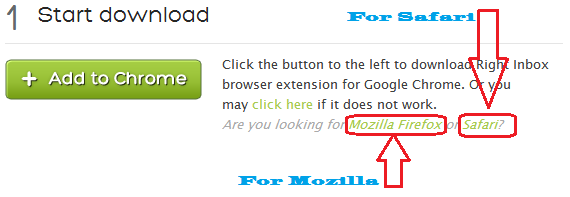
Sending mail later in gmail can be done by installing a RightInbox extension on your Google Chrome Or Mozilla Firefox browser .
All you have to is go to The Site RightInbox  and click on Install now as shown in the below screenshot .
How To Schedule Email's In Gmail : With Send Later Option

How To Schedule Email's In Gmail : With Send Later Option
Once you have installed and verified your gmail you can use the feature of send later in gmail . The send later tab will be shown just next to send now and is clearly visible .For firefox you might need to restart your browser .
So now you can schedule or gmail emails with an option to send later in google chrome , firefox and safari  . The send later contains option to send email in 1 hours , 2 hours , 3hours , tomorrow or at specified time.
The installation is quick and easy and once you are done with the installation the use of send later feature in gmail is also very easy .

Sunday, June 24, 2012

Top 5 Web Browsers Of All Time

Now a days there are lots of web browsers present over the internet and its not a easy task to select the prefect web browser to use the internet.There is a lots of competition between the companies to build a fast and a easy to use web browsers.Now here's the list of Top 5 Web Browsers of all time.


LIST OF TOP 5 WEB BROWSERS 


1  GOOGLE CHROME 

Top 5 Browsers Of All Time

Chrome browser developed by Google is a most lovable browser and allows you to install extensions and themes from the chrome web store.Chrome also facilitates the automatic webpage translation to 52 supported languages.


2  MOZILLA FIREFOX 
Top 5 Browsers Of All Time

Mozilla Firefox is developed by Mozilla cooperation and Mozilla Foundation.Firefox provides the features like Tabbed browsing, spell checking,Live bookmarking,Download manager and many more.


3  INTERNET EXPLORER 8
Top 5 Browsers Of All Time

Internet Explorer 8 is developed by Microsoft.This browser was released in march 2009.The main features Provided by Internet Explorer are Auto-compete,Automatic tab crash recovery and lots more.


4  OPERA
Top 5 Browsers Of All Time

Opera browser is developed by Opera software.Opera browser provides the features like Page zooming,Mouse gestures and many more.Opera also provides the facility to use mouse gestures.


5  APPLE SAFARI 
Top 5 Browsers Of All Time

Safari is a web browser developed by apple in January 2003.Safari provides facility of private browsing,Automatic filling of web forms,pop up add blocking and many more features. 

Saturday, March 24, 2012

How to Open Multiple Homepages On Your Browser

Homepage is basically meant for an instant access to an webpage whenever you connect to internet. One must utilize the homepage feature with more fruitful way . Since any user will want to have an instant access to their favorite websites , one can use multiple homepages so that there is no need to enter the url of your most visited favorite sites , Your favorite websites will open automatically on startup of your browser .

Multiple Homepages For Chrome :
Lets have a look how to implement multiple homepages for the browser chrome . Since chrome is the most popular browser so we are starting with chrome .
How to set multiple homepage tabs on the Chrome browser :
1.Go To options
2.In Basics settings tab you have to select the radio button with On start up "Open The following Pages "
3. Add your favorite websites here .
Multiple Homepages For Chrome
Multiple Homepages For Chrome 

These sites will automatically open when you open the chrome browser next time .

Multiple Homepages For FireFox :
Enabling multible homepages in Mozilla Firefox is easy too . You can easily implement it from the firefox settings .
1. First go to options of mozilla firefox .

2.2.Then in the home page you can write number of websites seprated by a vertical bar " | " , just like the screenshot below .
Multiple Homepages For FireFox
Multiple Homepages For FireFox 

You can get maximum benefits of your browser by using such tricks and tips .You can try this on different browsers as well .Hope you will definitely like this one . If you have something interesting related to this article do post it as a comment .

Sunday, February 5, 2012

How To Save Web Page as PDF, JPEG and PNG [Firefox Add-on]

Each and every browser comes with a feature of save as  which lets you read that webpage in future .But this option when used creates a folder of all the files and is not easy to find the important file in the folder.
No need to worry we got a solution for you by using the Firefox powerful Add-on Pdf-It!.
PDF It! is a excellent Firefox Add-on that helps you saves a webpages as a PDF or an Image file. Pdf-it! can help you save your webpage in the format PDF format , Jpeg image and Png image format. Techflashed recommends you to save your webpage in Pdf format as it will be easier to read from it But choice always remain according to the use .
How To Save Web Page as PDF, JPEG and PNG  [Firefox Add-on] ?


The Installation of this firefox add-on is very easy and will be as a option in the right-click options And after this you can save your any webpage by just a right click .

How To Save Web Page as PDF, JPEG and PNG  [Firefox Add-on]
Follow these Basic Steps :

1.Open the desired  webpage in Mozilla firefox you want save as PDF/PNG/JPG. You have to simply right click on it then select Pdf It! then Save as PDF then you have to choose Whole page.


2. Now choose your PDF storage location and click on save .

3. Same process is used to save the webpage as image i.e Jpeg or Png.


If you have any suggetion about this article on anything you want to share with us. Don't forget to post a comment . We will love to have your comments .